
OBSが「Failed to create directory」で起動しないときの確認順
OBSの初回起動時に「Failed to create directory ... Application Support/obs-studio/basic」と出る場合、設定フォルダを作成できていません。保存先、空き容量、既存設定を順に切り分けます。
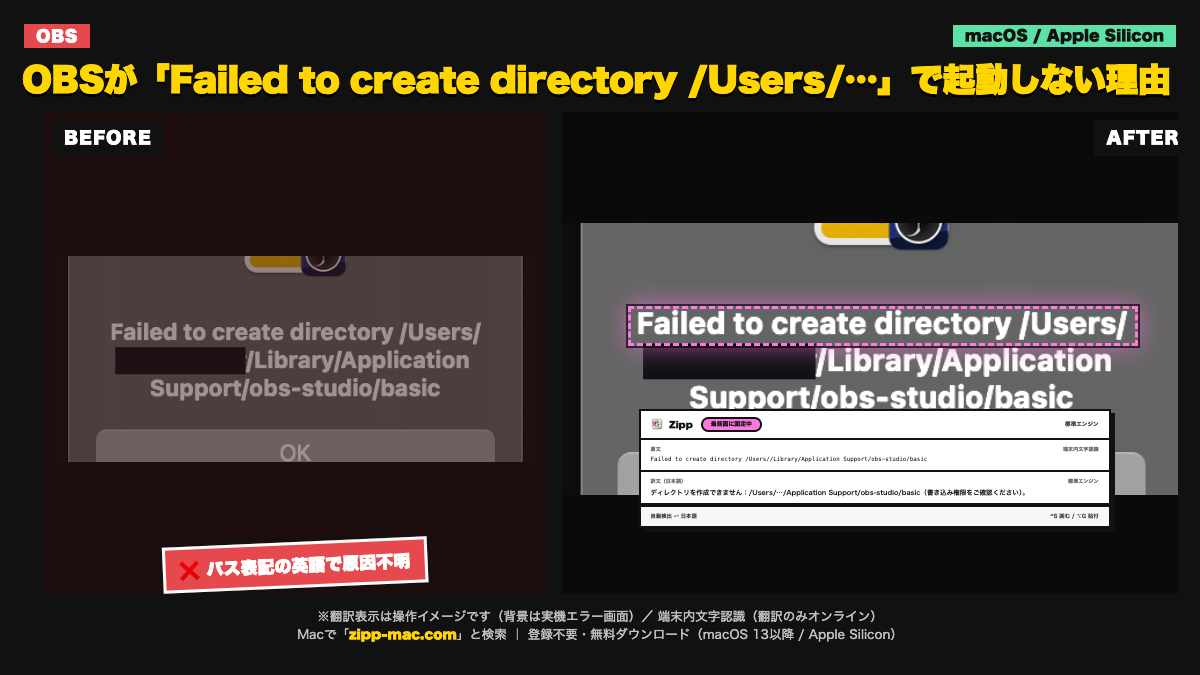
画面に出る英語(原文)
Failed to create directory /Users/.../Library/Application Support/obs-studio/basic
症状:OBSを起動すると設定画面まで進まず、ユーザーディレクトリを作成できないという英語メッセージが出る。
切り分け手順(3ステップ)
- OBSを終了し、Finderの「移動」→「フォルダへ移動」で `~/Library/Application Support/` を開く。親フォルダが存在し、通常のユーザーアカウントで書き込める場所かを確認する。
- ディスクユーティリティまたはFinderで起動ディスクの空き容量を確認し、ホームフォルダが読み取り専用になっていないかを確認する。権限を不明な所有者へ一括変更しない。
- 既存の設定が原因かを調べる場合は、`obs-studio` フォルダを削除せず別名にしてからOBSを起動する。新しい設定フォルダが作られた場合、必要な設定だけを戻す。
English troubleshooting guide
Symptom: OBS stops during startup because it cannot create its Application Support directory.
- Quit OBS and use Finder's Go to Folder command to open `~/Library/Application Support/`. Confirm that the parent location exists and is writable by the signed-in user.
- Check free space on the startup disk and confirm that the home directory is not read-only. Do not apply broad ownership changes to unknown files.
- To isolate a damaged configuration, rename—not delete—the `obs-studio` folder and start OBS again. Restore only the settings you need if a new folder is created.
このエラーが「選択できない」ときの読み方
文字認識は端末内(Apple Vision)。画面キャプチャの画像は外部に送信しません。翻訳はオンラインで、送るのは認識したテキストのみです。オフラインでは文字認識のみ動作し、翻訳は表示されません。
動作環境:macOS 13 以降 / Apple Silicon(arm64)専用(Intel Mac は非対応)。初回起動は「右クリック →「開く」」で実行(未公証のため。アプリの破損ではありません)
⬇ 無料でダウンロード(登録不要・.zip)ブラウザで体験する
初回起動 3 ステップ
- ZIP を解凍して
Zipp.appを Applications へ移動 - 右クリック →「開く」 を選択
- 確認画面でも「開く」を選択
SHA-256:66920f0b335fe7526184a6004df09bcb923e77bfc49f436ecfcc3b896dee84bb
macOS 13 以降 / Apple Silicon(arm64)専用 / 日本語固定 UI。Intel Mac は対象外です。